

Embeddable studio
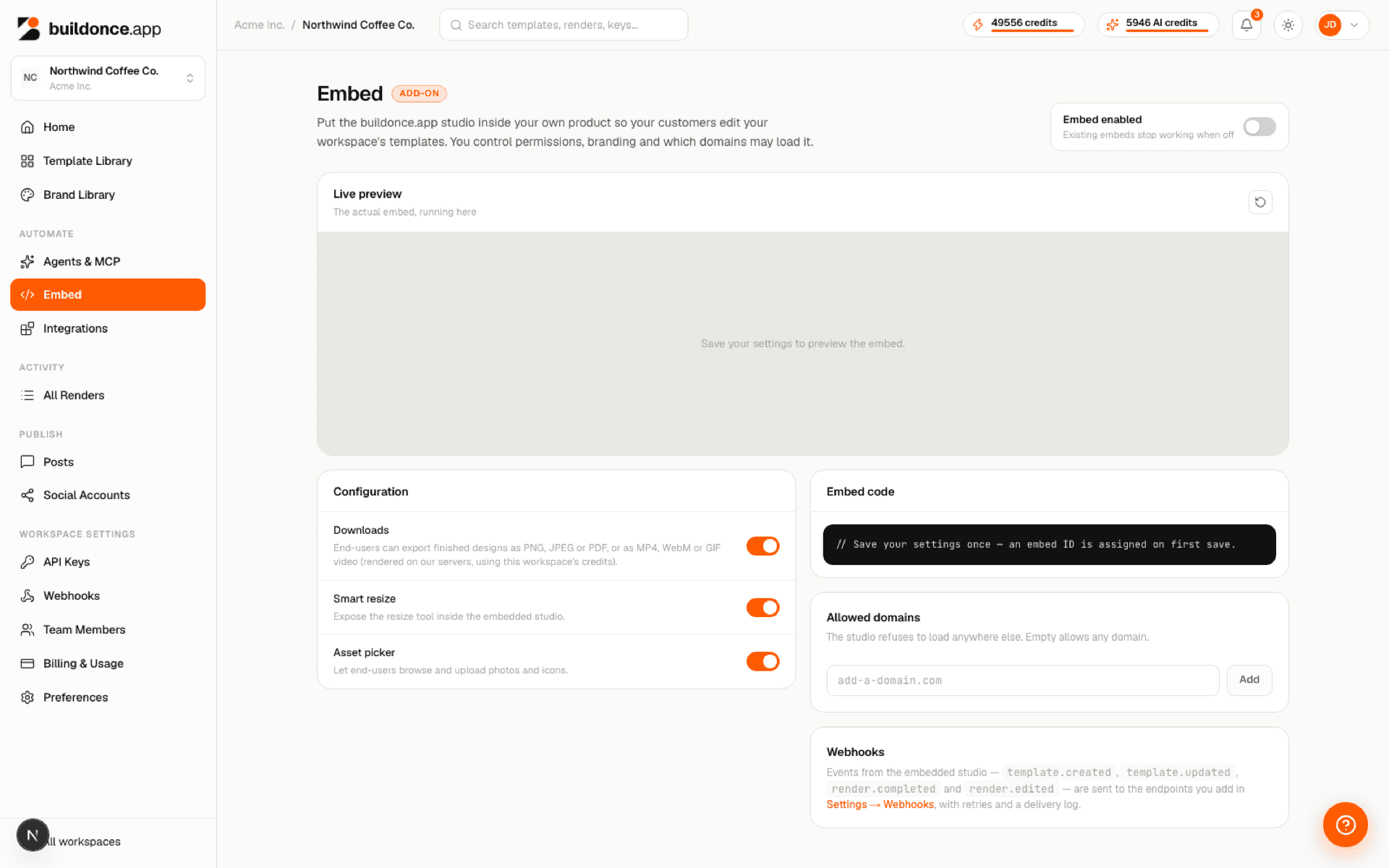
The same design editor used at /studio can be mounted on your own site as an iframe, so your end-users can create and render templates without ever visiting buildonce.app directly. Configure it from Embed in the dashboard.
Everyone who opens an embed works in one shared library: they see, open and edit all of the workspace's templates, including the ones made in the studio. To open one template straight in the editor, add its id to the URL:
<iframe src="https://buildonce.app/e/emb_…?templateId=tpl_…"></iframe>
Configuration
Each embed has its own configuration, independent of the dashboard studio:
| Param | Type | Notes |
|---|---|---|
| allowedDomains | string[] | Hostnames allowed to load the embed. Empty allows any origin. |
| downloadsEnabled | boolean | Grants render:write on sessions for this embed. |
| assetPickerEnabled | boolean | Grants asset:read and asset:write on sessions for this embed. |
| smartResizeEnabled | boolean | Toggles the editor's smart-resize UI. |
| brandTitle / brandIconUrl / brandAccentColor | string | Cosmetic branding shown inside the embedded editor. |
Webhooks
Embed activity is sent through the workspace's webhooks: add an endpoint under Settings → Webhooks and pick its events — including template.created, template.updated, render.completed and render.edited from the embed studio. Each delivery is signed and retried, and shows in the endpoint's delivery log. For the full event catalogue, payload shapes and verifying a delivery's signature, see Webhooks.
Downloads
With downloadsEnabled on, the embed's Download menu offers PNG, JPEG and PDF — drawn in the browser, free — alongside a Video section: MP4, WebM and GIF, rendered on buildonce.app's servers from the saved design.
| Param | Type | Notes |
|---|---|---|
| Size | Half · Original · Double | Double stops at 2160px on the longest side; GIF has no Double. |
| Quality | Smaller file · Standard · High | GIF has no quality option. |
| Frame rate | fps | Options vary by format. |
The dialog shows the clip's length and credit cost — 1 credit per second, the same at every size and quality — before rendering. The video uses the workspace's credits; the embed user sees the cost but never the workspace's remaining balance. The same Size and Quality options exist in the dashboard studio's own video download.
Render mode: edit a rendered design
Besides the template studio, the embed has a render mode that opens one render — a post or a whole carousel — for your user to edit. Your server creates an edit session with its API key and gets back an editorUrl (/e/:embedId?mode=render&session=…) to put in an iframe. Saving creates a new render; the template is never touched.
| Param | Type | Notes |
|---|---|---|
| allowPageChanges | boolean | Default true: add, remove and reorder slides. false fixes the slides; switching between them still works. |
| allowUnlock | boolean | Default false: layers and pages locked in the design stay locked, in place and present. true lets the user unlock them. |
Walkthrough: Let your users edit a rendered design. Reference: Render editing.
Was this page helpful?